If you find yourself needing to change the password to your zoom room, it only takes a few easy steps.
Application
If you are logged into the application on your computer, click over to the meetings tab (look at the top center for your options)
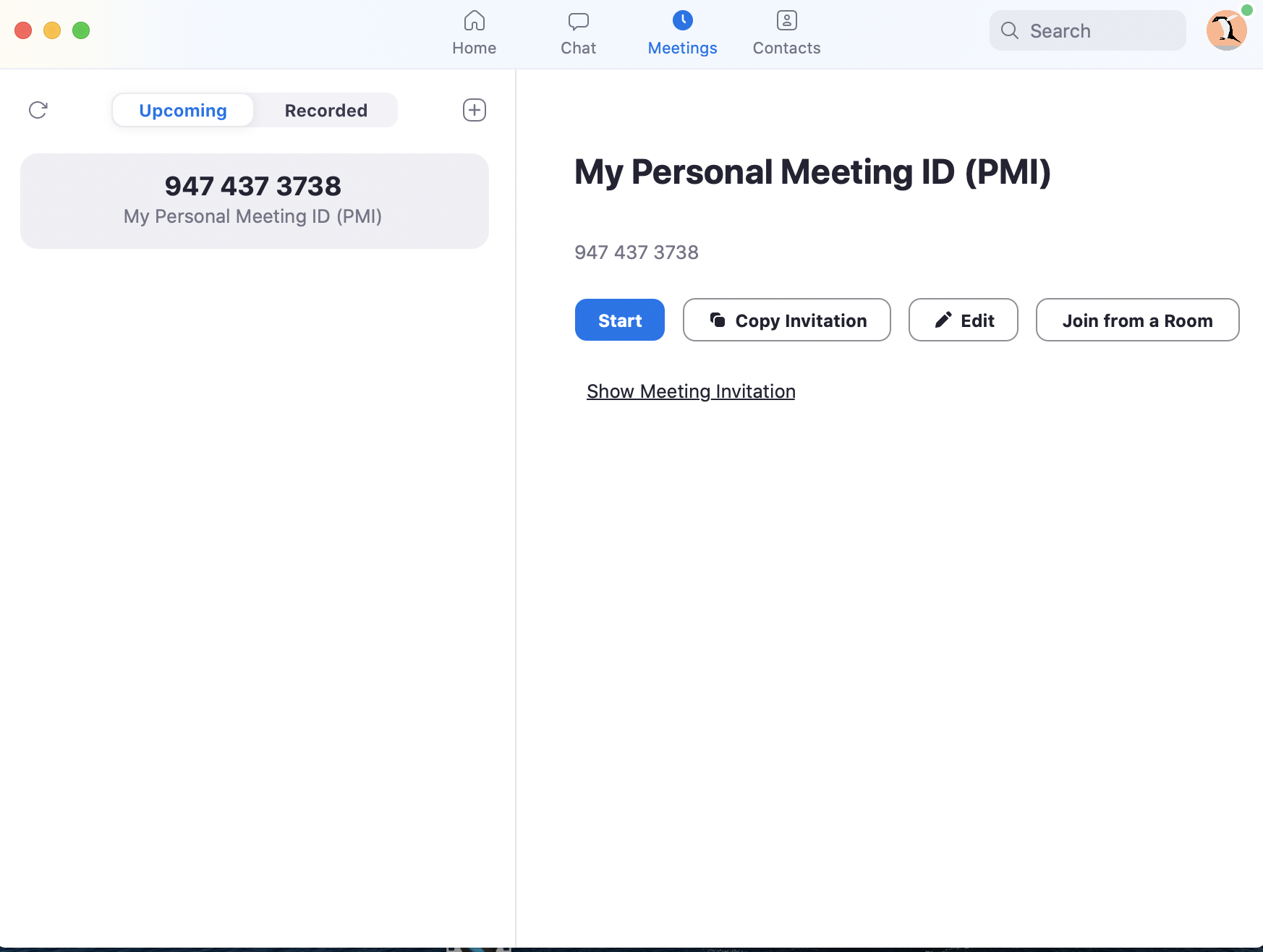
Once there, click the edit button and you will be able to change some settings, including the password to your zoom room
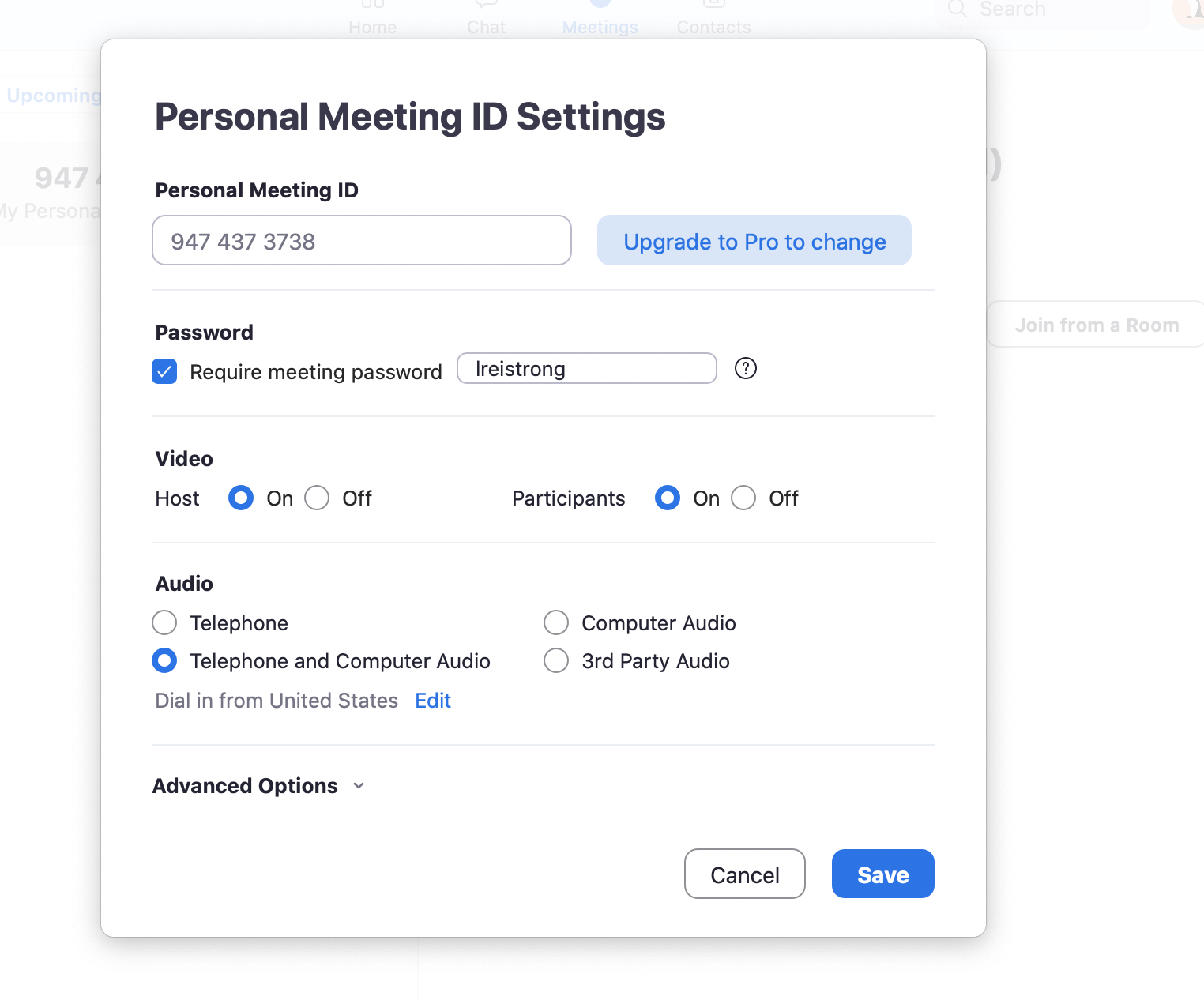
Click save, and you will immediately have your new password.
An important reminder is when you start a meeting, make sure you are on the meetings tab and select "Start". Do not select "New Meeting" from the home tab. Your password is randomly generated each time you do so
Website
If you are on the website and want to set your password, the steps mirror those above.
Make sure you have selected the meetings Menu, and then select personal room.
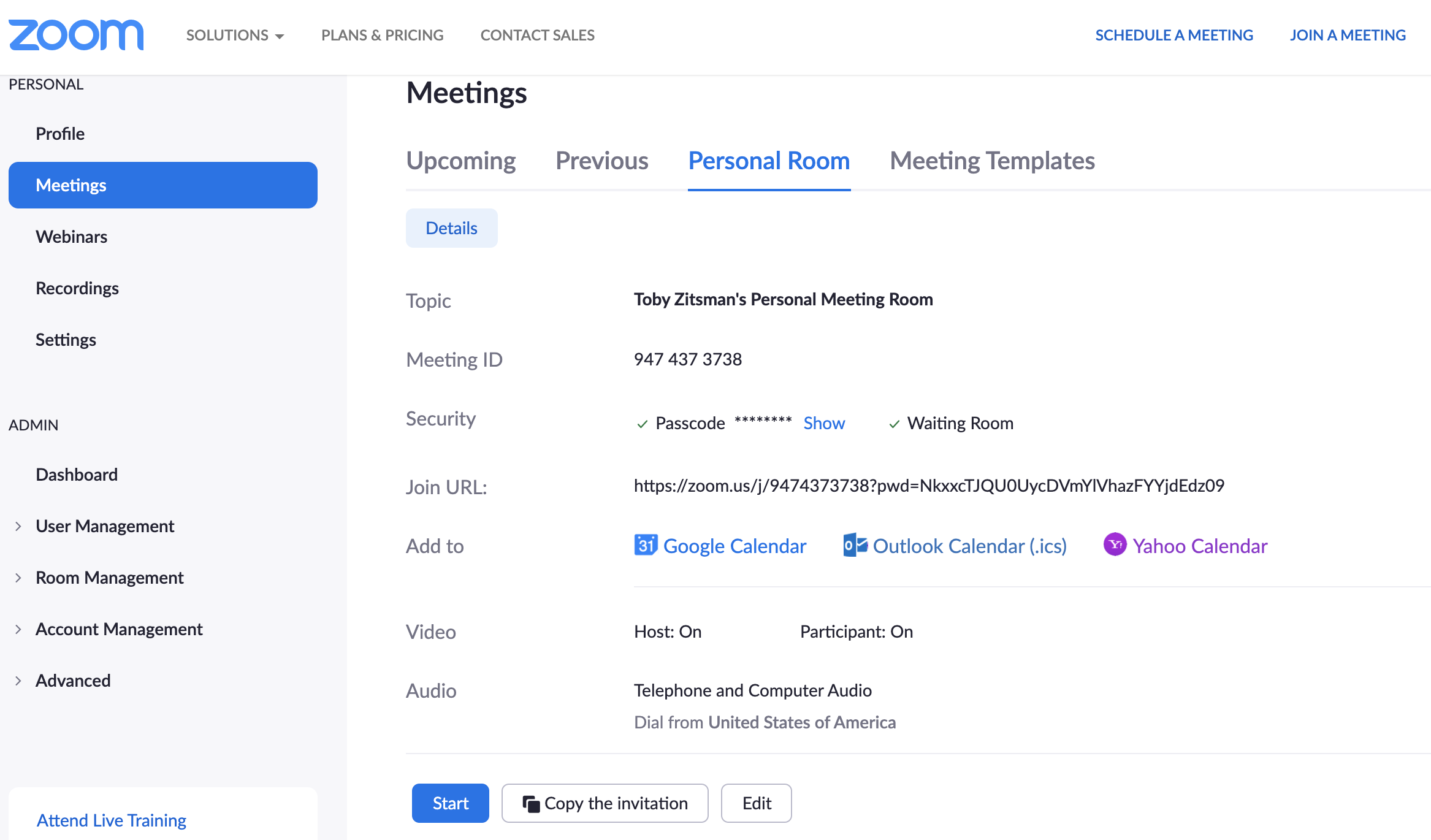
You will again see an option to edit the meeting. Select this button to be directed to the following screen
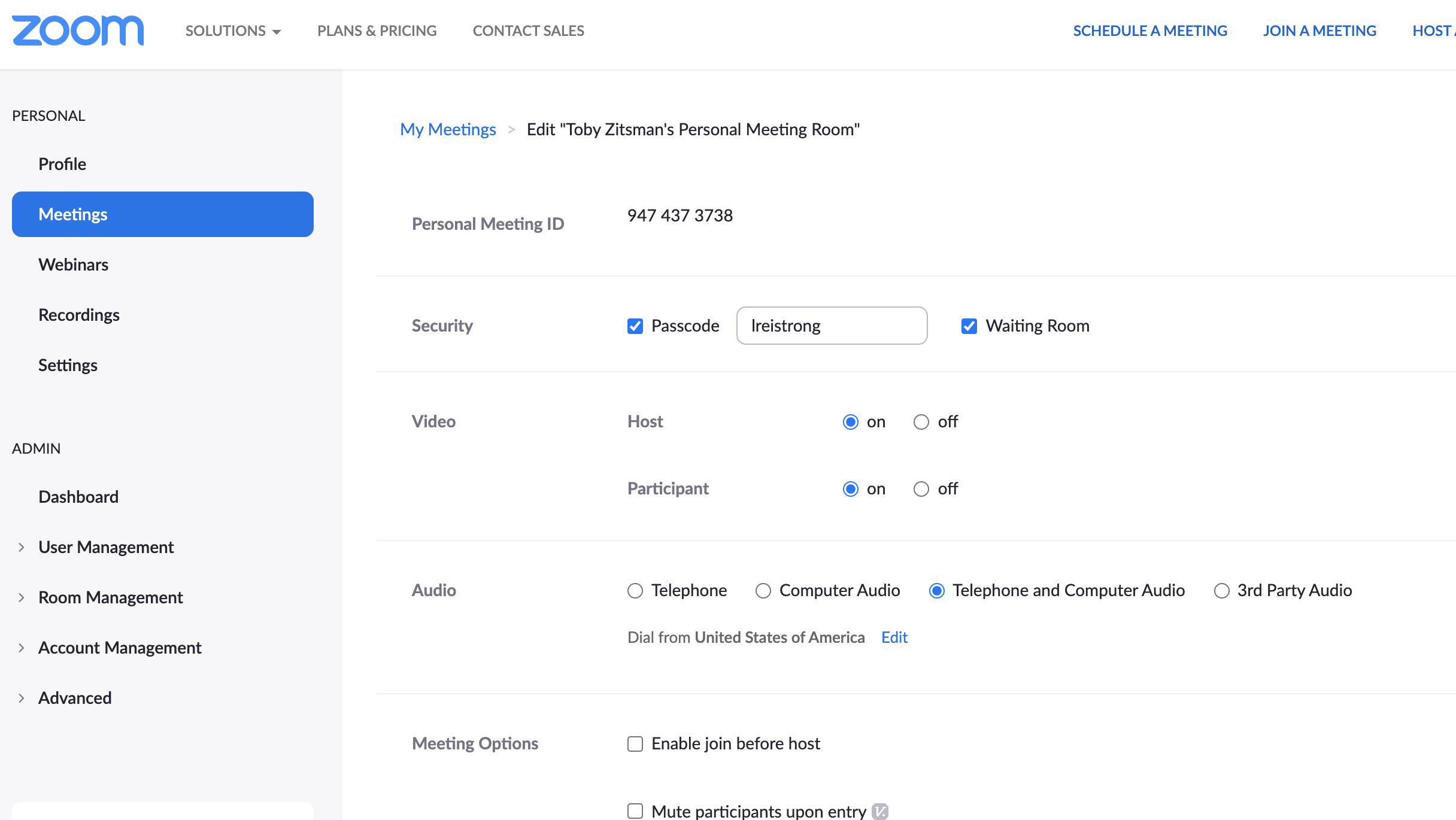
From here, you can change the meeting's password as well as a few other settings.
Of note, again please select "Start" from the personal room page for this to apply to your meetings. Otherwise the password is randomly generated each time
0 Comments