When you log on with an account/team you've already made, you will be greeted by the dedicated page for your team (in this case not baseball).
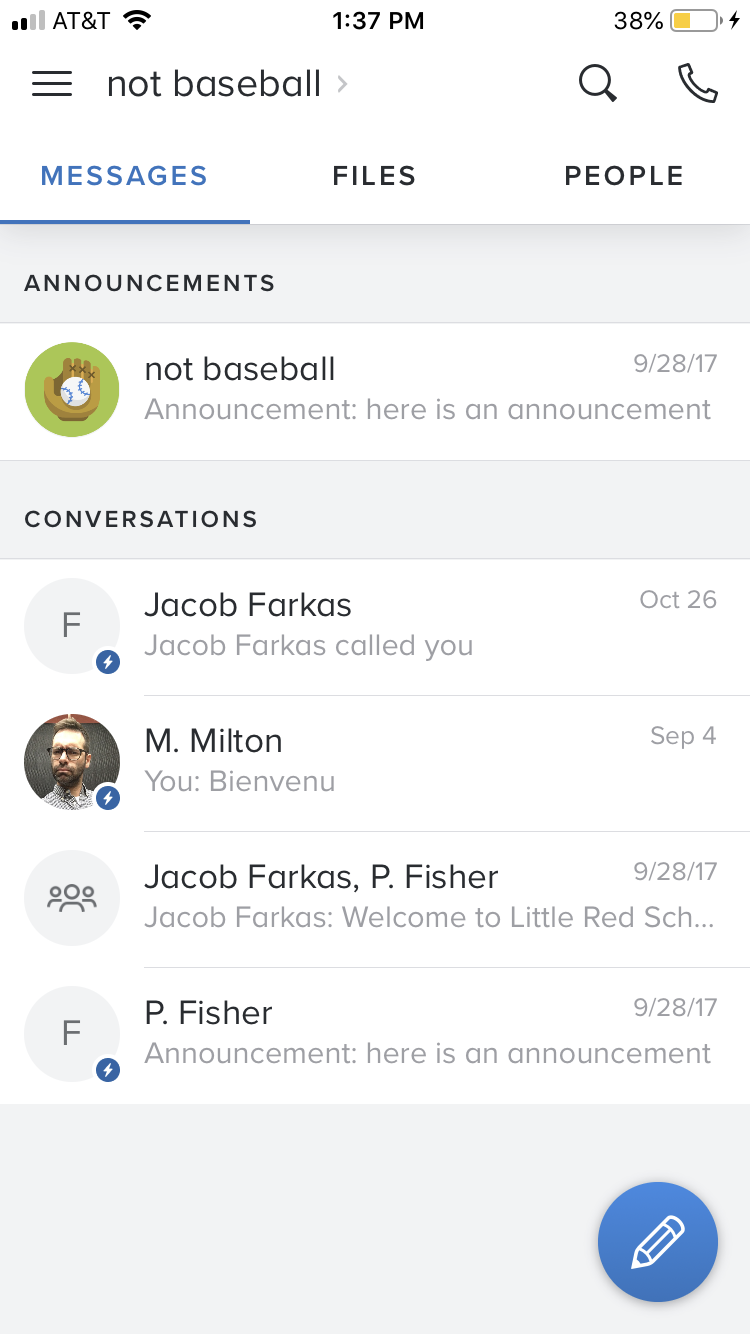
From here you can send messages. You can contact individuals by selecting a person's name. To send announcements to the whole team click where it says announcements. These messages will be sent to each member of the team.
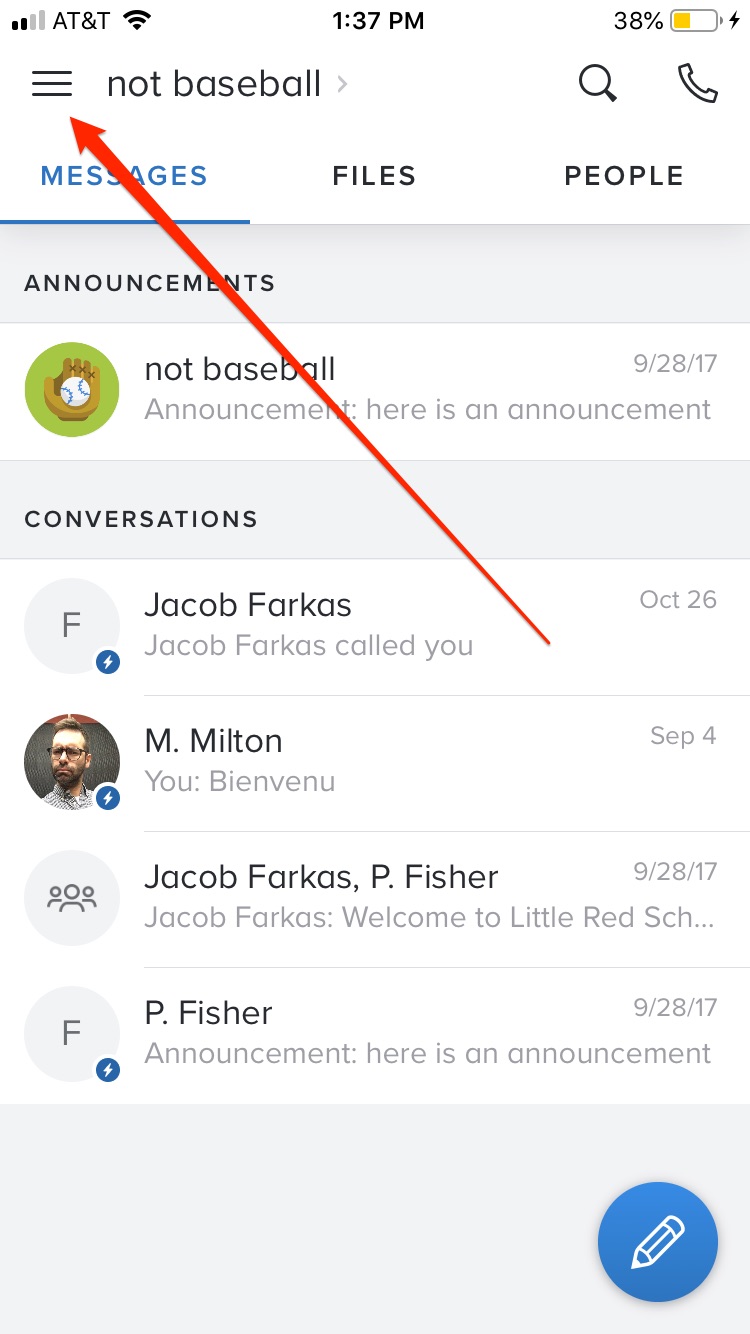
For more options you can follow the arrow to the menu and will see the screen below
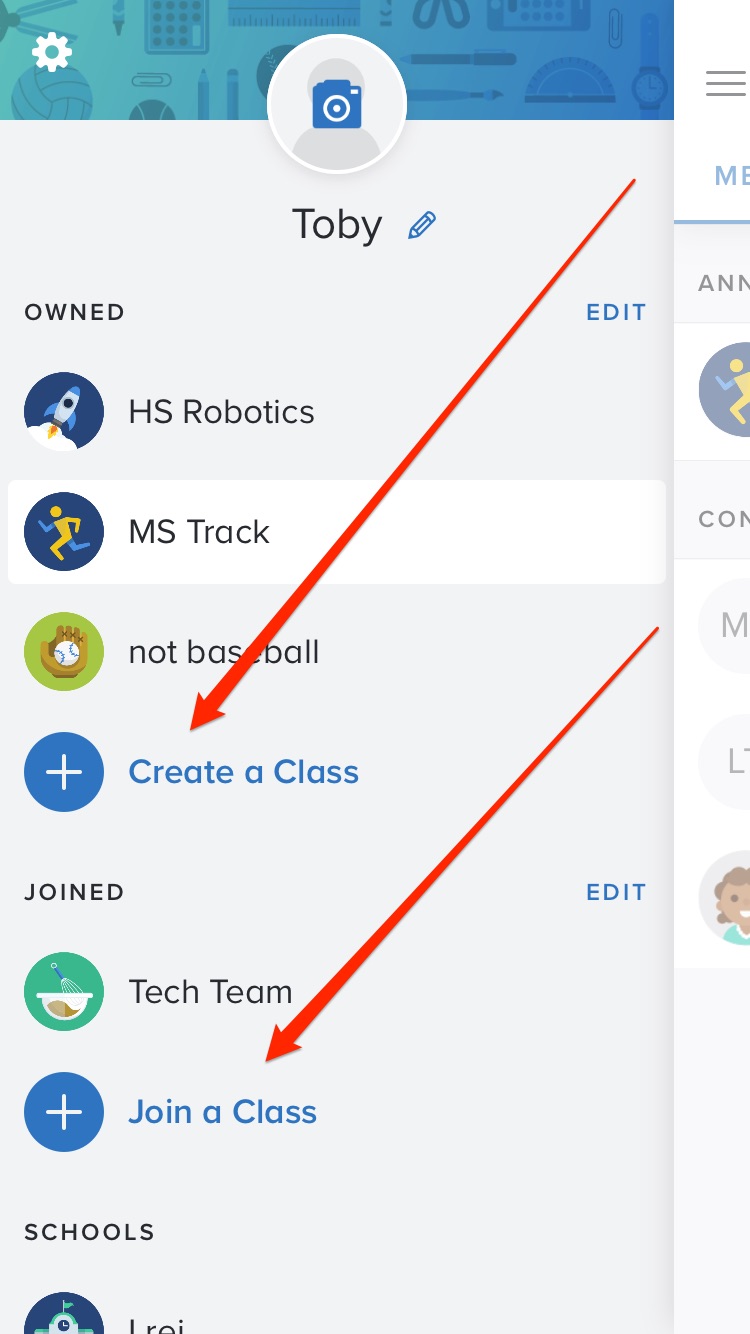
From here you can create and join more teams/classes. To create a team all you need to do is select Create a Class. You will then be asked for the name of team. Once you enter that you will be prompted to add members:
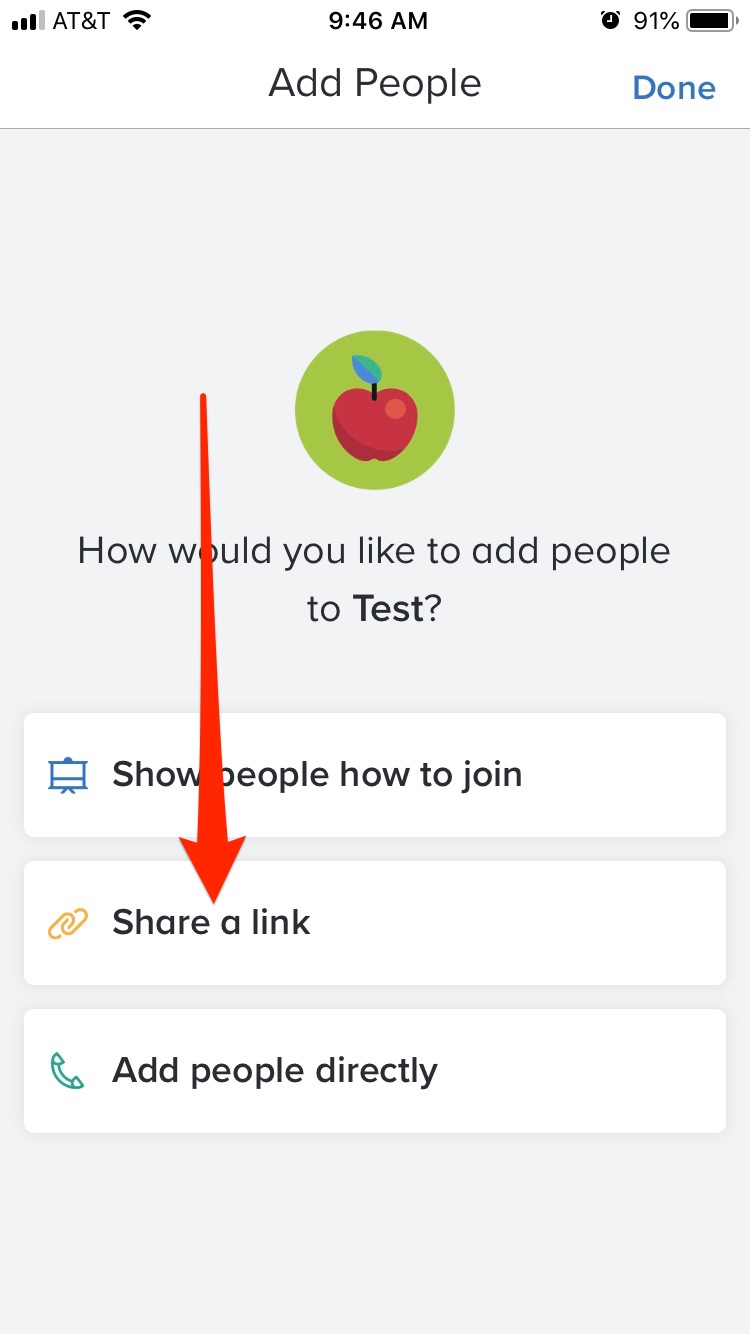
The best method is to share a link. You can email this link directly to you team
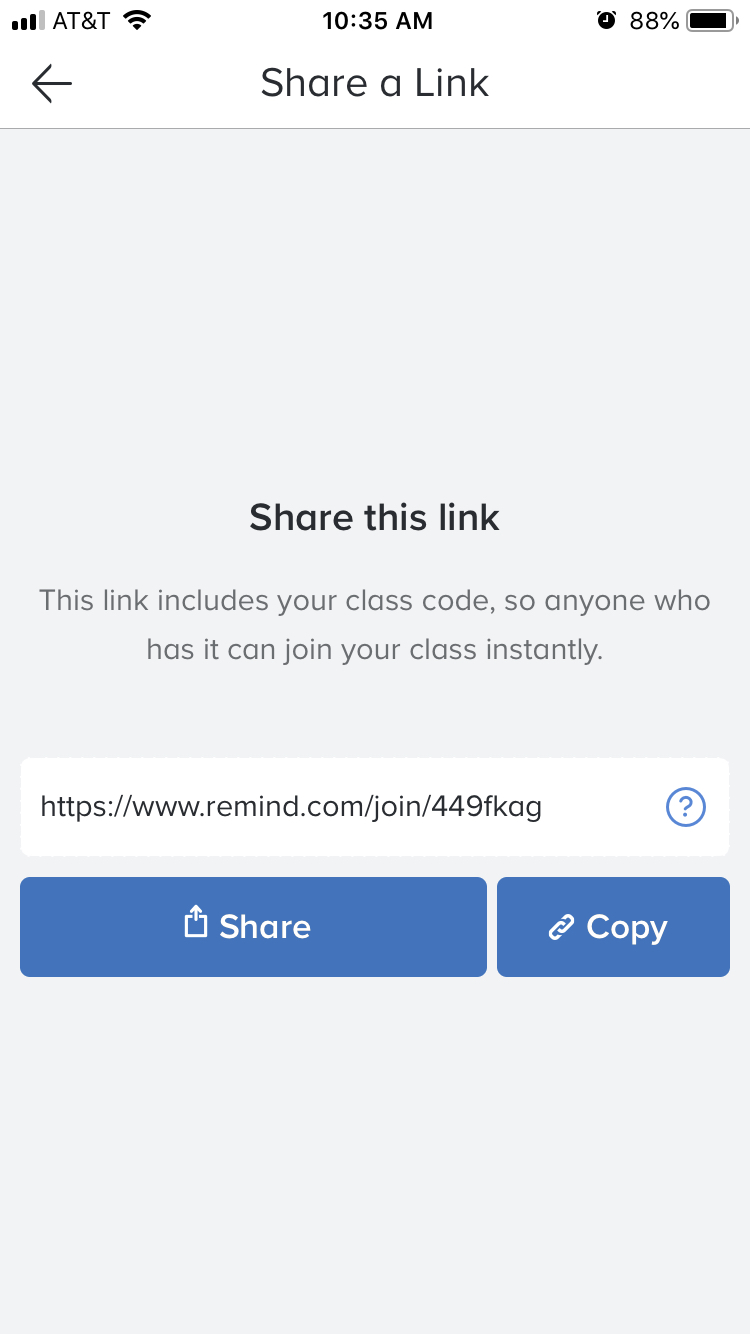
Alternatively, if the students have downloaded the app already give them the class code which is the last part of the shared URL (449fkag in this case). They can then join the class allowing them to send and receive messages
0 Comments