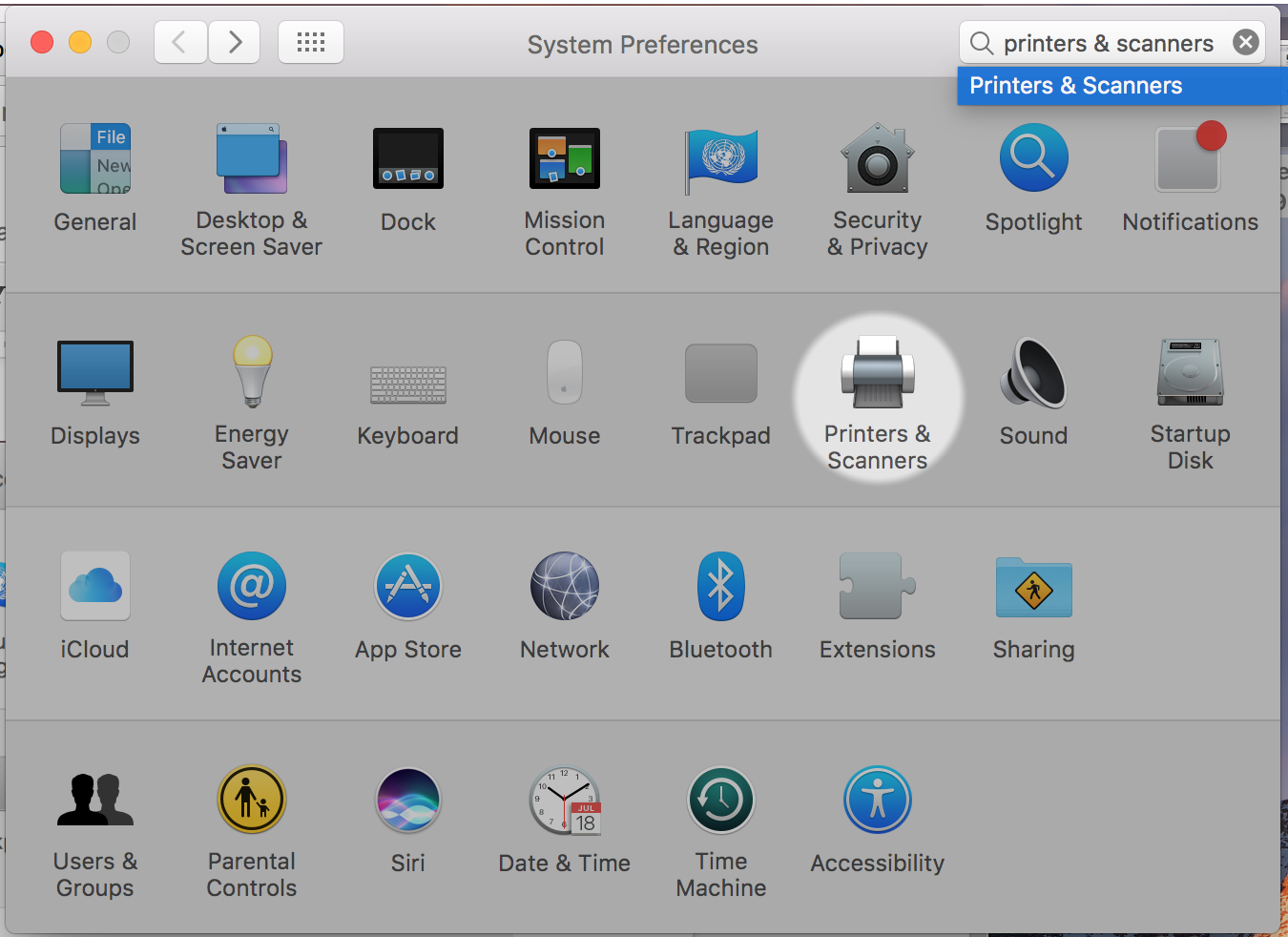
Open System Preferences
Select Printers & Scanners
If your Lab Color is not working
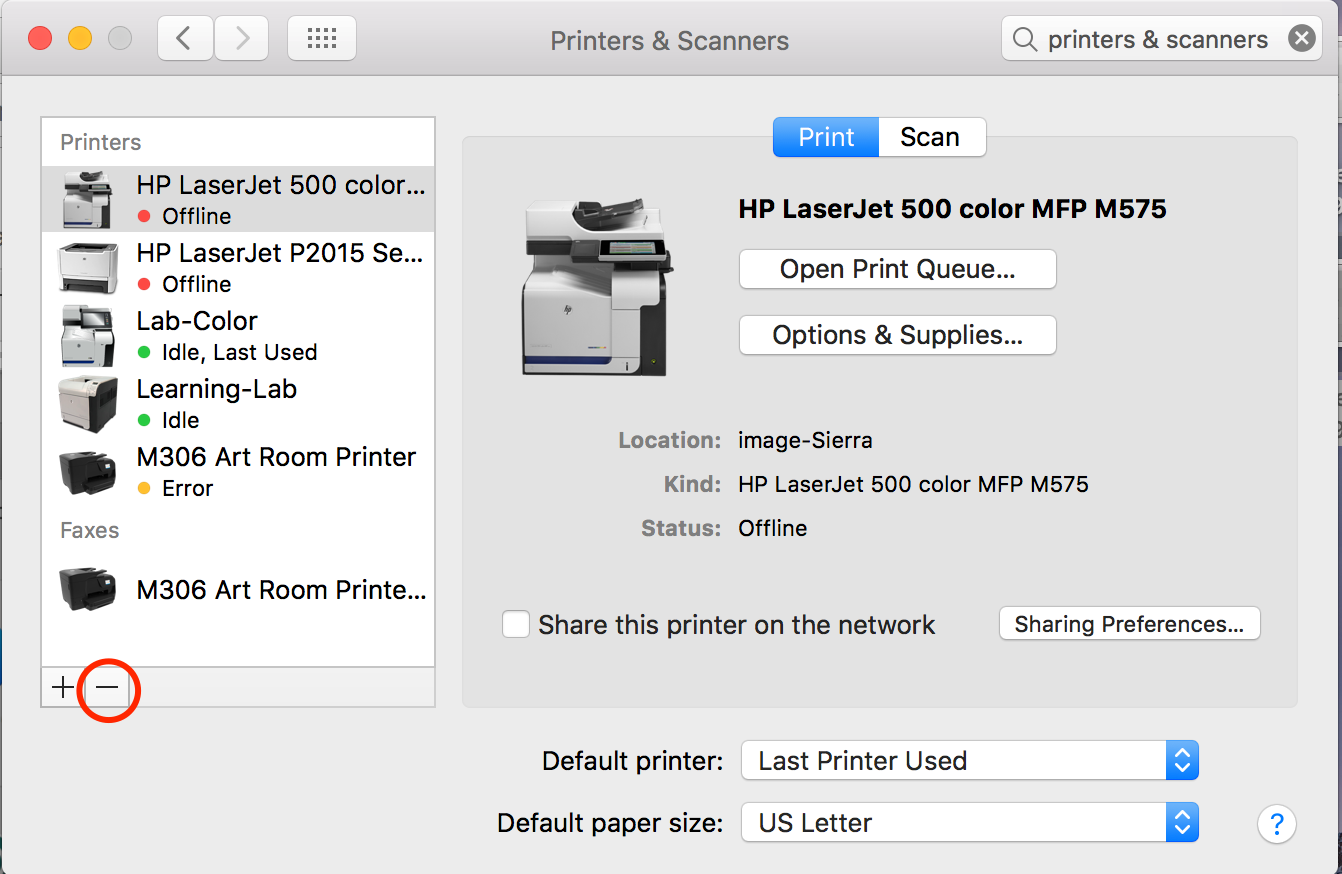
Delete the current Lab Colors by highlighting the current Lab Color you currently have and clicking the minus button
Open System Preferences
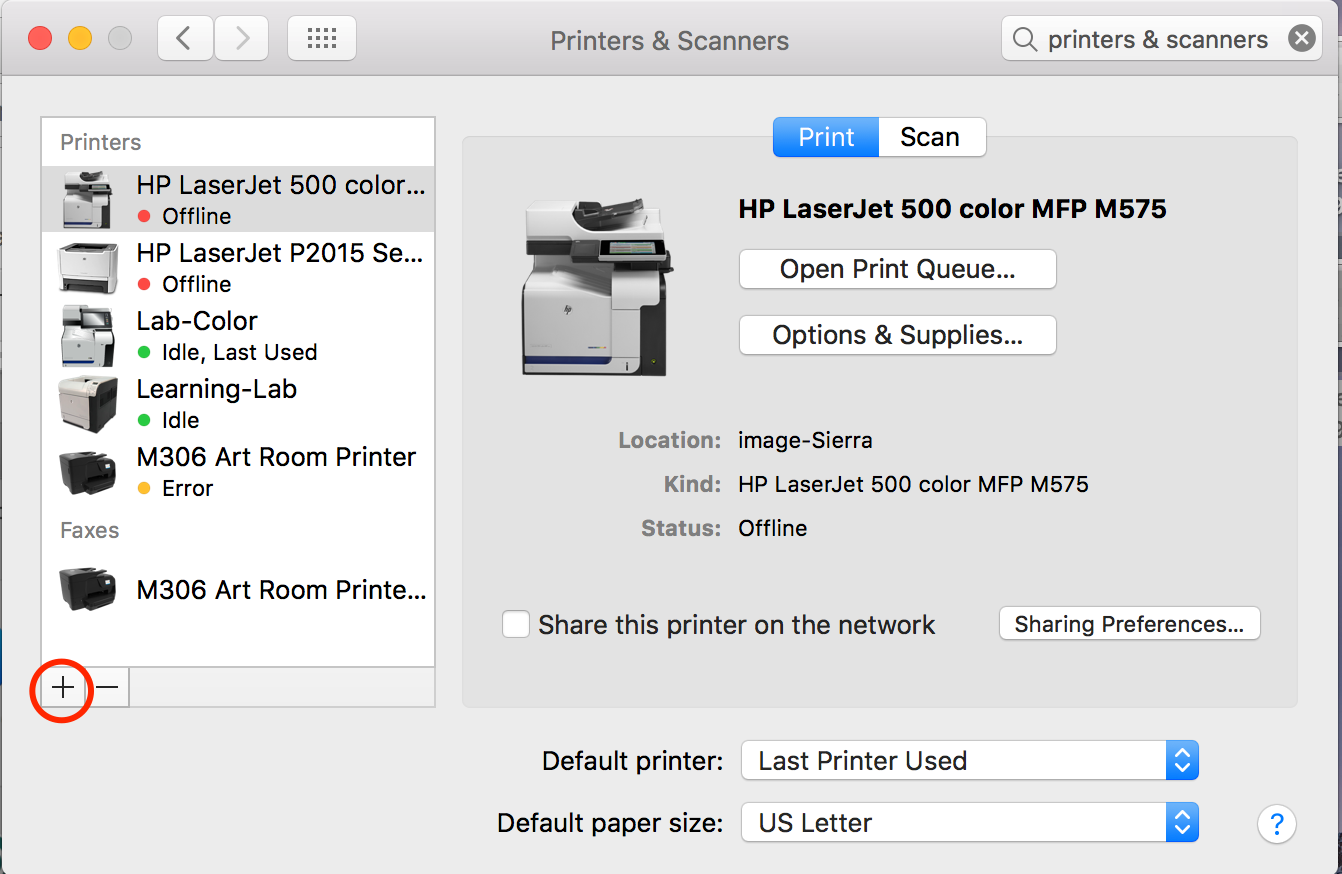
Then Select Plus
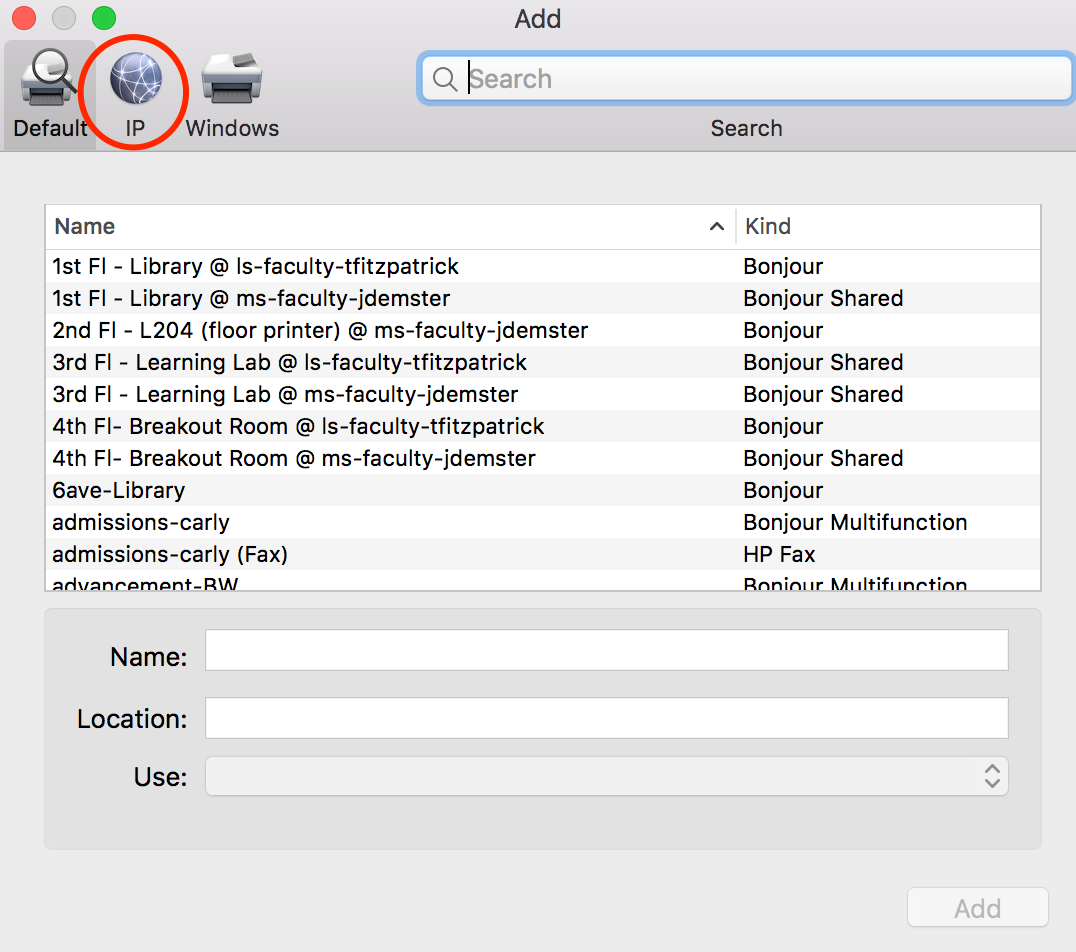
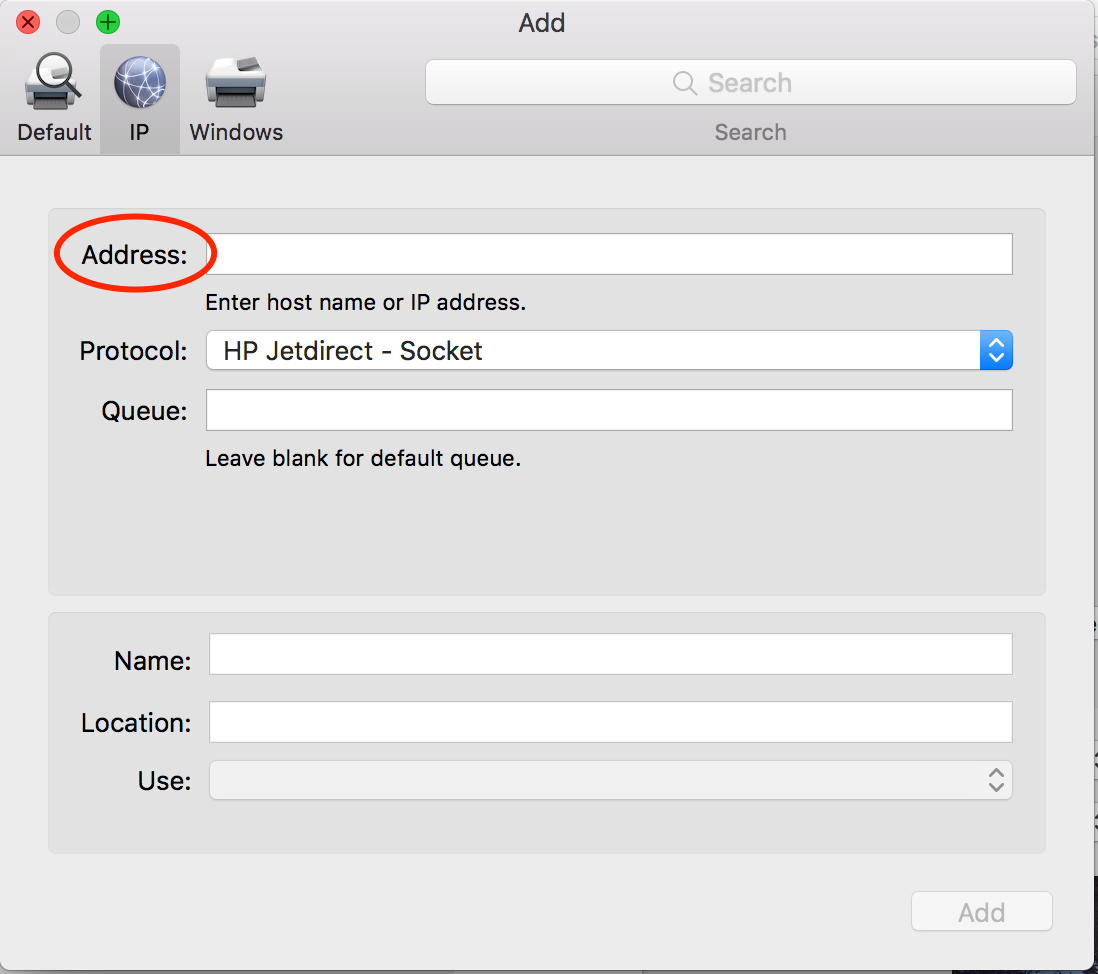
Select IP on the top left
In the Address field type: 192.168.192.42
After a moment the computer will find the printer. You will be able to tell when the Use field populates to: HP LaserJet 500 color MFP M575.
Change the Name field to Lab Color
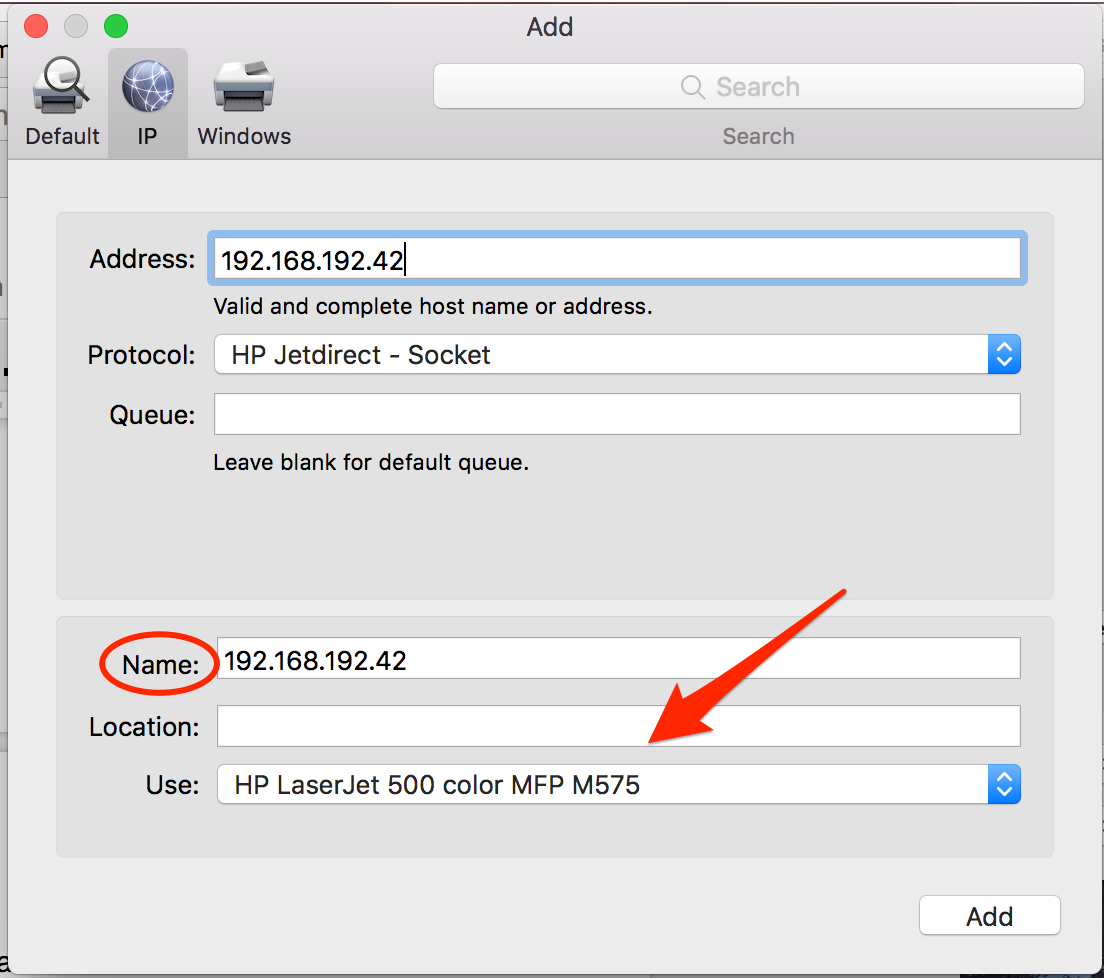
Select Add and exit system preferences
The printer Lab Color will now function correctly.
0 Comments